


Within the Pricing tab, you are able to add, edit, or remove pricing information for both base prices and upcharges.
IMPORTANT: Before entering the pricing for an item, it is important to add all attributes (colors, sizes, shapes, materials, product options imprint methods, etc.) which may affect the base price. When adding pricing for an item, there are two available sections:
- Base Price is the starting cost of the mug with its standard features. A product can feature a single base price grid or multiple price grids depending on its attributes. When to use:
- A single price grid: If the price for the product is the same for all attributes (all colors, sizes, shapes, materials, etc). For example, the product is a 12oz ceramic mug has one price for all standard features.
- Multiple price grids: If the product has a different cost for specific attribute(s). For example, a T-shirt may be one price for standard sizes (XS-XL) but cost more for extended sizes (2XL, 3XL, etc).
- Upcharges are additional costs incurred when the customer chooses to add options and/or customization such as imprinting, personalized text, or special features. For example, additional charges, such as a less than minimum, set-up charges, additional colors, special options, etc. will require an upcharge price grid. Products can contain multiple upcharge price grids.
All price grids begin with a minimum quantity and can have up to ten total price breaks. Each price break will need to include the:
- List Price - suggested retail price
- Net Cost - amount charged to the distributor for the product
- Discount Code - industry-specific codes suppliers use to identify the list price versus the net cost discounts on their products.
What would you like to know more about?
- Entering Pricing Information
- Less Than Minimum
- Price Type
- Currency Type
- Product Confirmed
- Sold Per Unit
- Viewing and Organizing Price Grids
- Reset and Delete Pricing
- Copy Pricing Information
Enter Pricing Information
Enter the pricing information in the appropriate boxes. There are two basic rules:
- Quantities must go from lowest to highest.
- List Prices and Net Costs must go from highest to lowest.
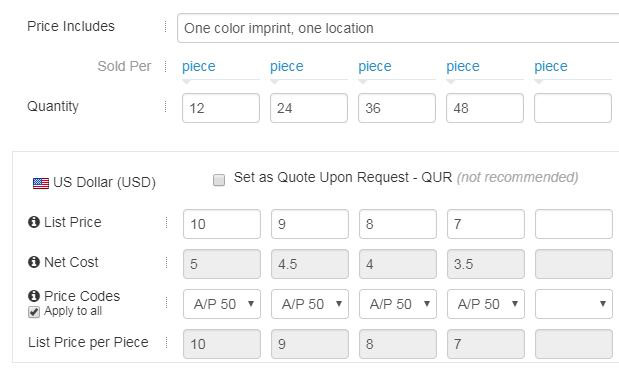
Use the Price Codes dropdown to select the discount code. The system will then calculate the net cost automatically. If the same price code applies to all the quantities in this price grid, check the Apply to All checkbox.
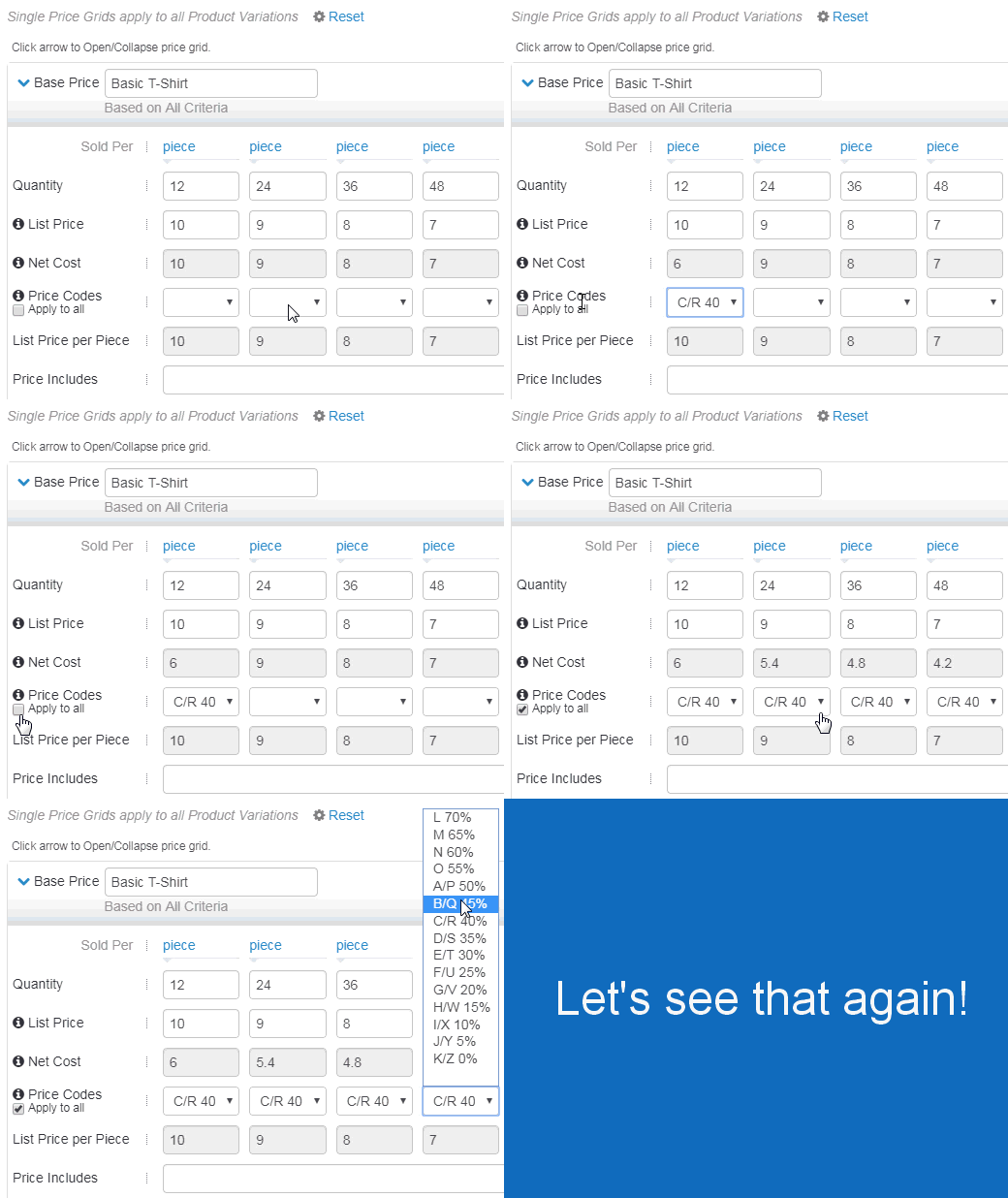
The List Price per Piece will be automatically calculated based on the sold per unit.
In the Price Includes box, indicate what is included in the base prices. For example, if the base price includes a one color, one location imprint, type “1 color, one location imprint” in the Price Includes field.

Check the "Set as Quote Upon Request - QUR" box to provide pricing only upon request. This is not recommended.
Less Than Minimum
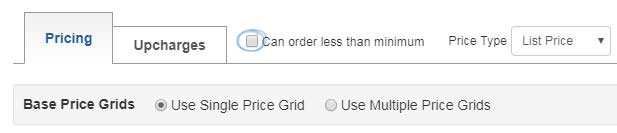
Use the checkbox to indicate that the product can be ordered in quantities below the standard minimum.
Price Type
Use the price type dropdown to select how you would like to enter pricing - using the list price, net cost, or both. By default, ESP Updates will be set to List Price.
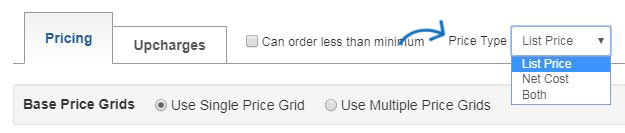
The price type determines which fields are available and which are greyed out in the price grid(s). For example, if you select to enter Net Cost, then the List Price fields will be greyed out and automatically calculated based on the value entered in the net cost and the price code. If "Both" is selected, then you will be able to manually enter pricing in the List Price and Net Cost sections, meaning the Price Codes do not apply and therefore, they will be greyed out. The List Price per Piece will always be automatically calculated by ESP Updates based on the sold per unit.

Currency Type
ESP Updates now provides Suppliers with the ability to enter pricing for multiple currencies on a single product listing. All price grids must have at least one currency type selected. To enter multiple currencies, select the currencies you would like to use from the Currency Types dropdown and then click on Enter.
Note: Currency Types must be selected on the Pricing tab, they cannot be selected from the Upcharges tab.
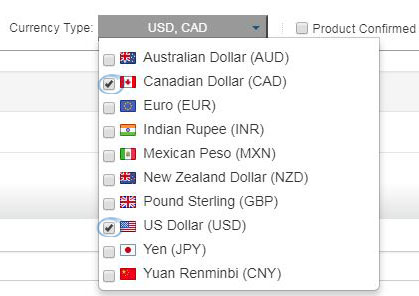
Note: You are able to select more than one currency option, but only US (USD) and Canadian CAD) currency is currently supported in ESP.
If you have selected to use multiple currencies, the price grids will be displayed together.
Two price grids will be shown. The Price Includes and Quantity fields appear above the price grids and will apply to both currencies. Then, enter the pricing for each type of currency.
Note: The Quote Upon Request (QUR) checkbox can be selected independently, meaning pricing can be entered for one currency and set as QUR for the other.
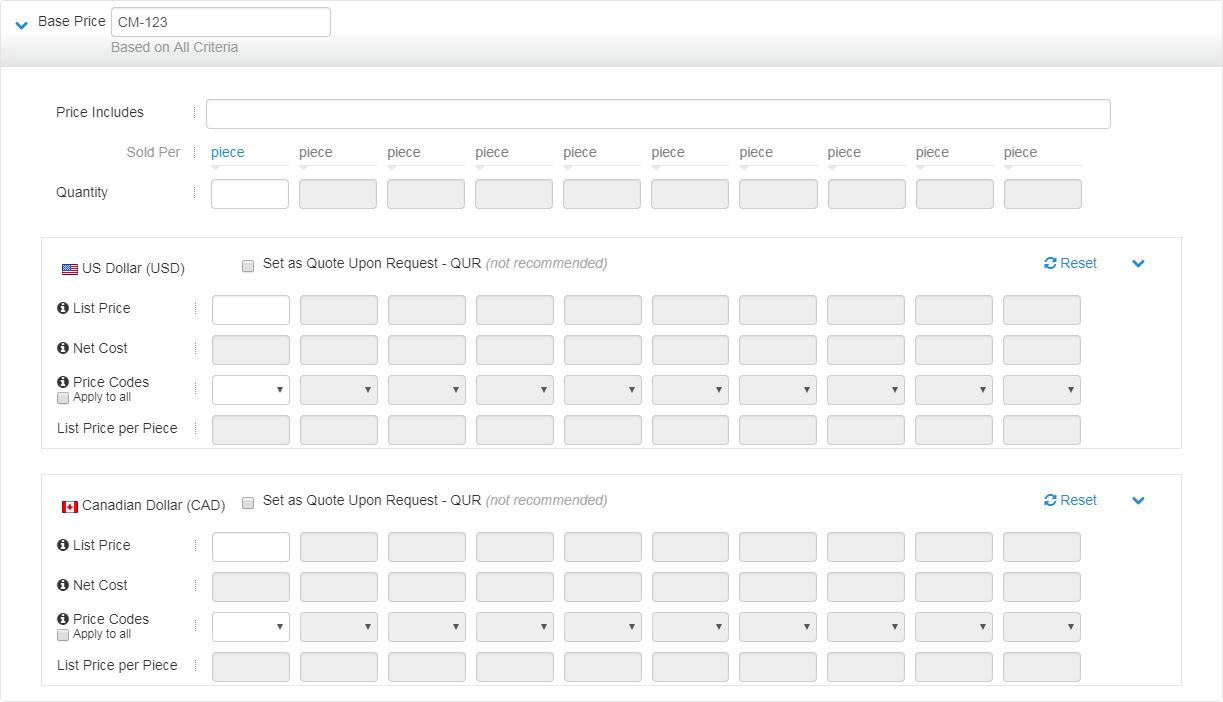
Once an additional currency type is selected, a price grid for the new currency type will be populate to all the base prices and upcharges associated with the product in the order it was selected from the dropdown. This means if USD was selected first and CAD was selected second, the price grids will display with USD first, then CAD.
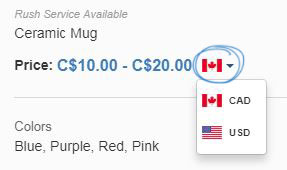
If pricing has been added into the multiple currency price grids, distributors will be able to select which pricing to view in ESP Web. A currency dropdown will appear on the Detail view within ESP enabling distributors to view the price grid in the currency they need. An example of this drop-down is shown below.
When you are finished, click on the Save button and then click on the Make Active button to make the changes live.
Product Confirmed
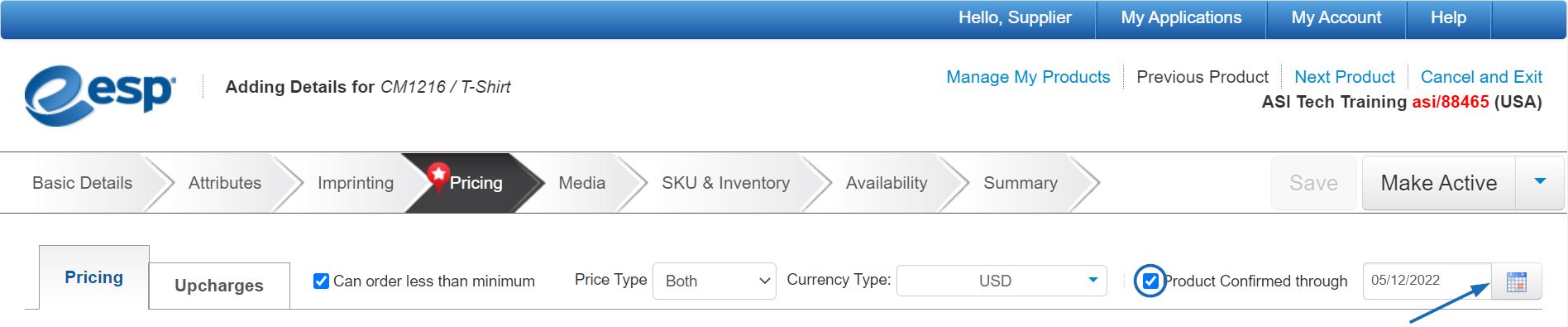
Use the Product Confirmed through checkbox to confirm that the pricing is accurate through a specific date. Click the calendar icon to change the "confirmed through" date. By default, the confirmed through date will be set to one year from the current date. Uncheck the box if you do not want to indicate that your product data is confirmed.
Sold Per Unit
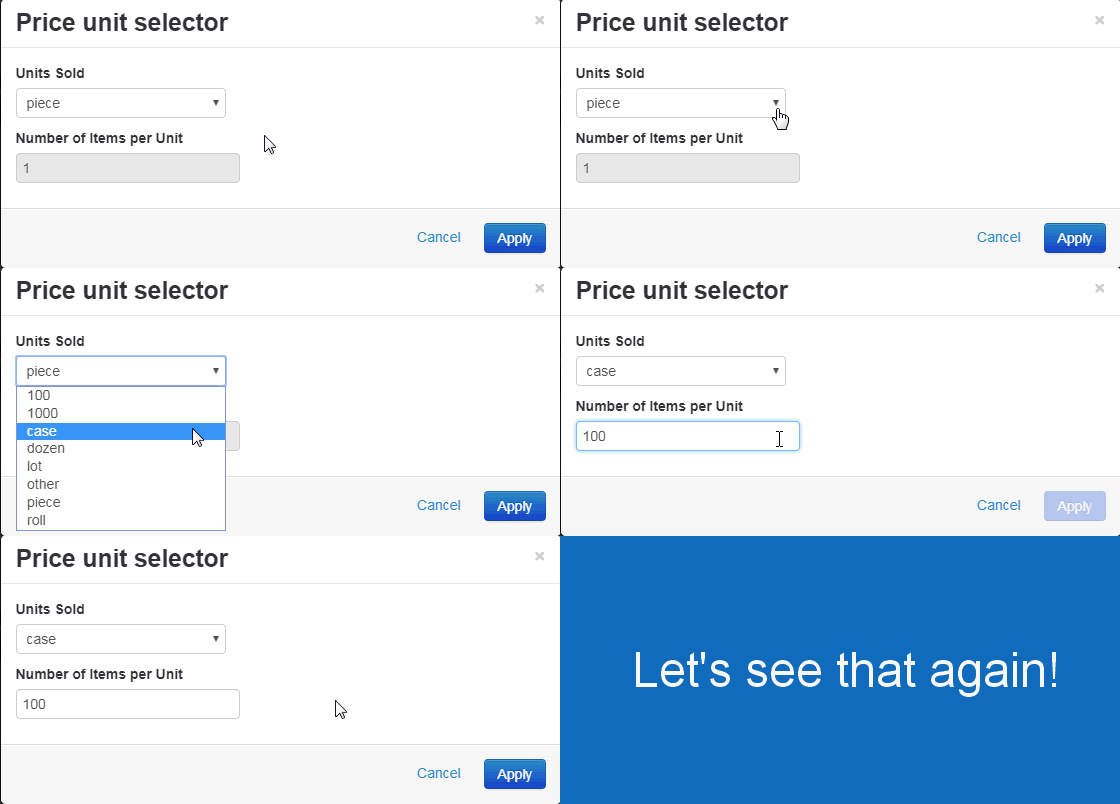
By default, ESP Updates will indicate that the product is sold per "Piece". However, you can click on the "Piece" link to select the units in which your product is sold. If the product is sold in a case or roll, use the text box to enter the number of items within each unit (case, roll, etc.). The sold per unit is used to calculate the List Price per Piece.
Viewing and Organizing Price Grids
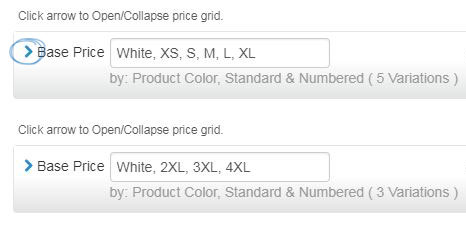
To expand or collapse a price grid, click on the arrow.
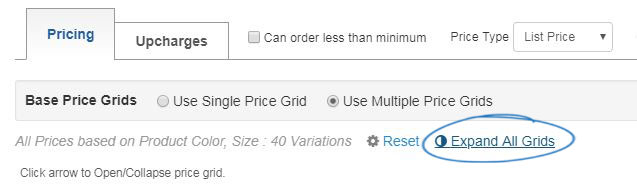
To expand multiple price grids, click on the Expand All link.
You can choose which price grid you want to display first by clicking the reorder arrows to the right of the price grid. For example, if the product is a T-Shirt which has four price grids, we can use the arrows on the right to move a price grid up or down in the order. In the example, the price grids are in the following order:
- White - Standard Sizes (XS-XL)
- White - Extended Sizes (2XL-4XL)
- Colors - Standard Sizes (XS-XL)
- Colors - Extended Sizes (2XL-4XL)
To re-organize the price grids so that the sizes are together, click on the arrows to the right. In the example below, the colored shirts in standard sizes is being moved up one spot, which automatically moves the white shirts in extended sizes down.
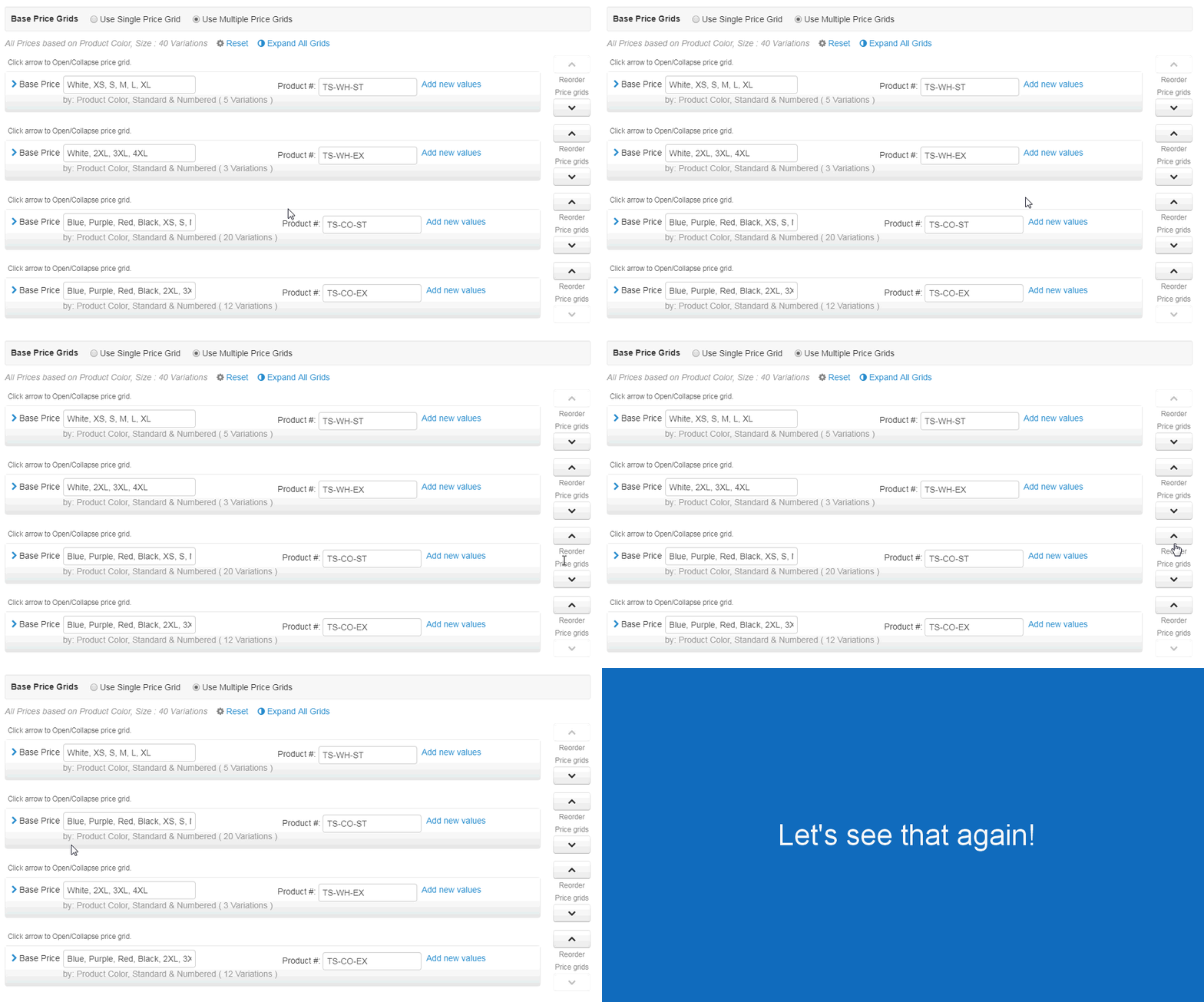
This makes the price grids have the following order:
- White - Standard Sizes (XS-XL)
- Colors - Standard Sizes (XS-XL)
- White - Extended Sizes (2XL-4XL)
- Colors - Extended Sizes (2XL-4XL)
It is at your discretion how to organize multiple price grids.
Reset and Delete Pricing
There are two ways to remove pricing information for a single price grid: Reset and Delete. Both links are located in the lower right corner of the price grid.
- Reset will remove pricing information, but keep the price grid. To reset price grid information, click on the Reset link.

- Delete will delete the price grid completely. To remove a price grid, click on the Delete link.

If there are multiple price grids for a product, use the Reset option above the price grids to clear all pricing information and start over with pricing. This reset link will remove all previously created base price grids.

Copy Pricing Information
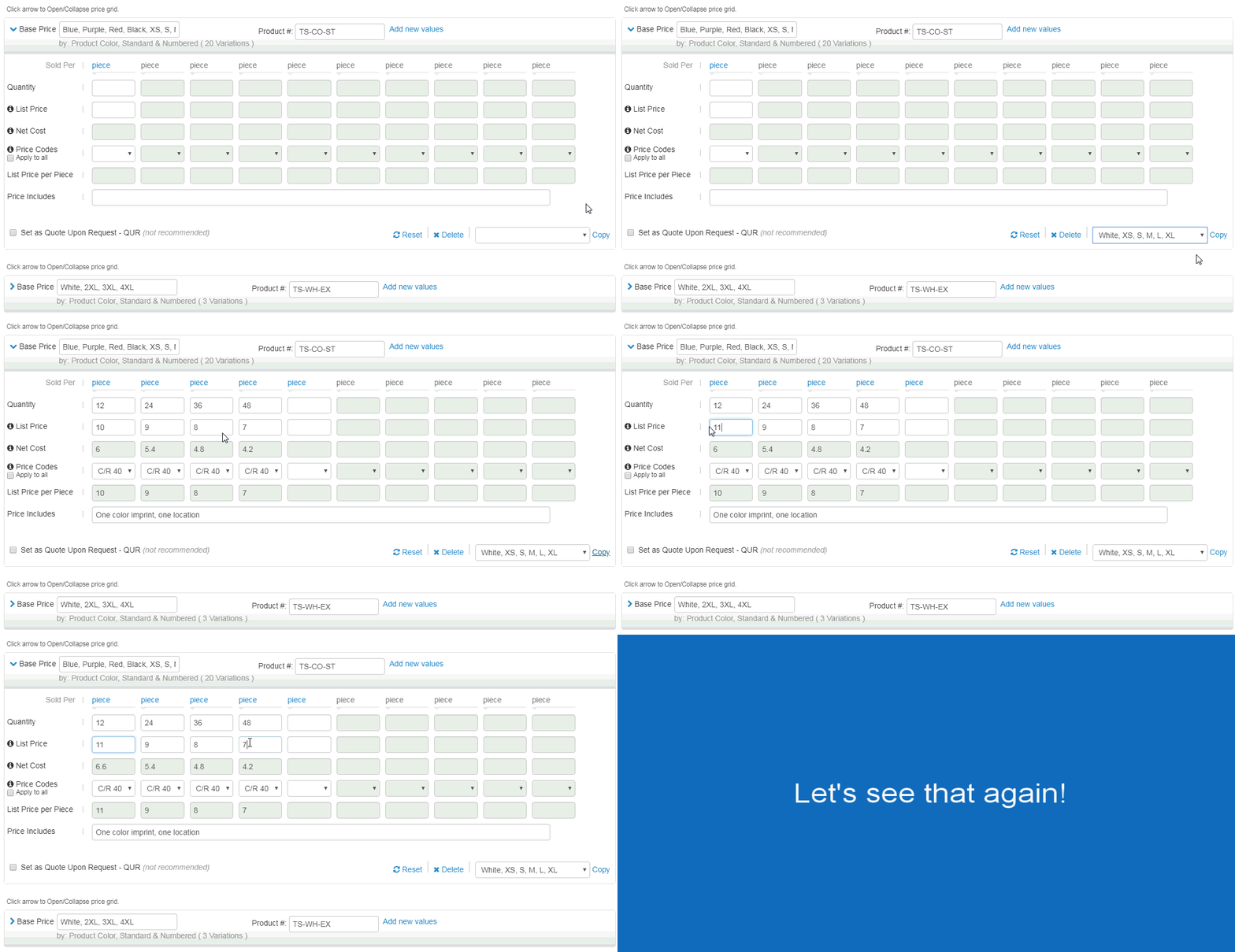
When using multiple price grids, sometimes pricing is similar. To copy the pricing information from one price into another and then tweak it, use the Copy dropdown in the lower right corner of the price grid. Select the price grid you would like to use and then click on the Copy link. The pricing information will be filled in and ready for you adjust.
Discount Codes, also referred to as Price Codes, are industry specific codes that suppliers use to identify List Price versus Net Cost discounts on their products. Generally, discount codes can be found directly following a retail price, in or around the pricing grid, or within the F.O.B. (Freight On Board) section of the catalog page. ASI members can view more information about the Discount Codes.